
 Learn how to simplify repetitive tasks editing audio by making custom Chains in Audacity. A Chain in Audacity is a script that performs a series of tasks on tracks or files. You can save a lot of time performing repetitive tasks with Chains. Chains also work great for remembering effect settings that can't be saved (like for Chris's Dynamic Compressor).
Watch the video!
How to add own chains
- Go to File menu > Edit Chains.
- Click “Add,” enter a name, and click “OK”
- Insert commands by clicking “Insert” below the commands list.
- Double-click a command to show its name in the top window.
- If you want to edit the command's/effect's settings, click “Edit Parameters” and set everything as you normally would with the effect.
- Click “OK.”
- Repeat steps 3 through 6 as necessary to include your desired commands or effects.
- Chang the order of the commands with the “Move Up” and “Move Down” buttons.
- When you're finished, click “OK.”
How to apply chains
- Select the audio you want to modify. This can be a small selection, an entire track, or a selection across multiple tracks.
- Go to the File menu > Apply Chain.
- Click the Chain you want to apply to your selected audio.
- Click “Apply to Current Project.”
How to create a keyboard shortcut
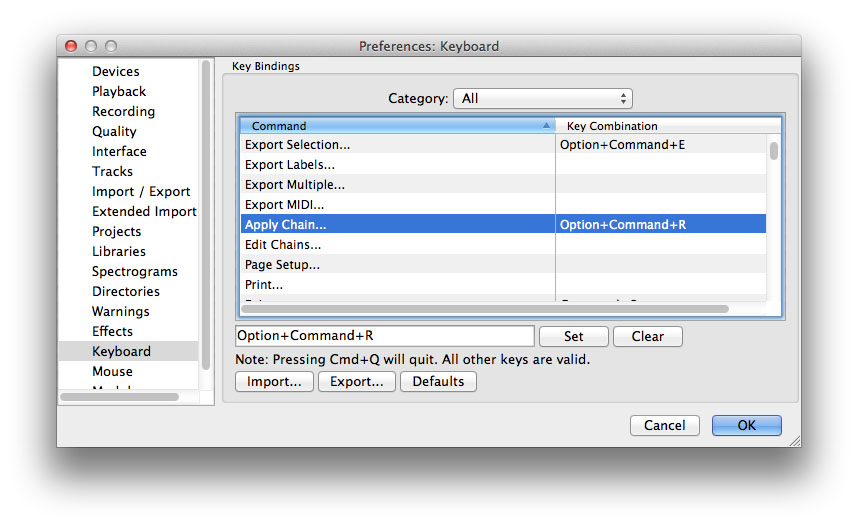 If jumping through menus is too much, make a keyboard shortcut that will be more convenient.
- Go into the Audacity Preferences (On Windows, Edit menu > Preferences; on OS X, Audacity menu > Preferences).
- Click “Keyboard” in the list on the left.
- With the “All” category selected, scroll down to “Apply Chain” (about a single screen down).
- Click in the blank space below the list.
- Enter your desired keyboard shortcut and click Set. Audacity will warn you if there's a conflict with another command.
- Click “OK” when you're finished.
Some notes about Chains
- Chains do not currently support export as AIFF, Other uncompressed files or any formats supported by FFmpeg.
- You cannot set export format options or export sample rate in the Chain. If you need to specify export options other than the current default, import or generate some audio, File > Export, select the audio type, click “Options…” then choose and save the option and cancel the export.
- (Linux) When configuring effect parameters in “Edit Chains”, the “Preview” button is not intended to be functional. Pressing it may cause a crash.
- Chains only use built-in commands or Nyquist Effect plug-ins (as of Audacity 2.0.1).
Send your podcasting tips for 100th episode!
To celebrate the upcoming 100th episode (currently scheduled for October 15), send me your podcasting tips!
- Send written or recorded tips.
- Make them shorter than 30 seconds.
- Mention your name and website.
- Make each tip able to stand on its own, even if you have to send multiple recordings.
Please retweet this!
Need personalized podcasting help?
I no longer offer one-on-one consulting outside of Podcasters' Society, but request a consultant here and I'll connect you with someone I trust to help you launch or improve your podcast.
Ask your questions or share your feedback
- Comment on the shownotes
- Leave a voicemail at (903) 231-2221
- Email feedback@TheAudacitytoPodcast.com (audio files welcome)
Connect with me
- Subscribe to The Audacity to Podcast on Apple Podcasts or on Android.
- Join the Facebook Page and watch live podcasting Q&A on Mondays at 2pm (ET)
- Subscribe on YouTube for video reviews, Q&A, and more
- Follow @theDanielJLewis
Disclosure
This post may contain links to products or services with which I have an affiliate relationship and may receive compensation from your actions through such links. However, I don't let that corrupt my perspective and I don't recommend only affiliates.
Related Content


Hey, Love the podcast! I got the “chris compressor” and installed into plugins, but when I record something and go to “effect” I do not see “Chris’s Compressor” what I do see is “compressor dynamics 1.2.6” is that Chris’s compressor? I just want to make sure I did everything right. Thanks for your patience and help.
Hi, Robert! Thanks for listening!
Yes, “Compress Dynamics 1.2.6” is Chris’s Dynamic Compressor.
SWEEET! thanks! one more question, what effects DO you recommend? I am recording sermon for church through a sound system. Sorry if you already answered this, you could just point me to podcast if you want, I have tried to go back and listen to as many as I can.
I’m a big fan of natural voices. I recommend effects only for intentional effects (like audiodrama) or if an affect can “fix” a problem (like removing noise or restoring a recording to its original sound).
But I do definitely recommend a compressor—not a bass-boosting multiband compressor, but just something to even out the loud and quiet spots a little. Depending on your denomination, the sermons may be monotone, up and down, or a constant loudness. I’ll leave you to assign denominations to each of those. 😛
Laughing outloud! 🙂
Chains — how liberating! Thanks for a great tip, Daniel!
Thanks! Version 2.0.1 really made Chains more useful. You should’ve seen the commands list before then! It was much shorter and included almost no effects.
Chains — how liberating! Thanks for a great tip, Daniel!
Great show. Thanks, I am learning so much! One question. I’ve been using Chris’s compressor normally. For some reason it doesn’t show up when I press insert for my chain. It’s in the plugin file for audacity and I’m using the latest version of audacity. Any thoughts?
Ah I found it. I was accidently using an old version of audacity even though I had downloaded the new version. Thanks for all your hard work.
Great! That’s what I was going to suggest double-checking.
Thanks dude. Really helpful. I just have one question. I need to give my voice power. Unless yours in that video, my voice is too shrill. Thank you…
You could try a basic bass boost or some EQ. The Heil PR40, which is the mic I currently use, is good at giving any voice some more boom. But then again, don’t feel like you have to sound like a radio show.
Sometime, check out the Geek News Central podcast. I wouldn’t call Todd’s voice “the voice of angels,” but he has a massive audience because of his content and presentation.
Daniel, I thought the Leveler that is built into Audacity does what the Compressor you spoke of does? It’s supposed to even out the sound so that the volume stays consistent throughout the project. Why do you need Chris’ Compressor? Also, have you ever use a freeware app called Levelator? I love freeware and have had this app for a long time but have not used it because I only started editing audio fairly recently and if needed I just used the Audacity effect.
Chris’s Dynamic Compressor processes things differently and gives you a bit more control. Levelator is dead and has no controls. Now, you could check out the web service Auphonic that has some powerful features.
Auphonic tests out great for the online version. Great to be able to ‘test’ it out for 2 hours of content a month. Seems to be far better then Levelator and far easier to use then Audacity for ‘simple’ levelating and gain management.
In several of my tests, I’ve seen Auphonic to be better than even Adobe Audition for noise reduction!
Hi Daniel, I’m so glad I found your website. I’m planning to start a podcast and am intimidated, but feeling better as I read and watch your stuff. Do you have a recommended chain sequence for basic editing such as normalizing, Chris’ compressor, and then exporting to mp3 in iTunes? Or would that not work? My plan is to use Zoom for video conferencing and record, import only audio to Audacity, edit, and export. I’ll need to add in some theme music, of course. Thank you in advance.
You can do some of that with Audacity, but peak normalization in Audacity is almost useless. Listen to https://theaudacitytopodcast.com/loudness for how to loudness normalize your audio. It’s more steps, but it produces industry-standard loudness.
Will do. Thanks. I used Zoom for my first interview last night. Selected to have the audio tracks recorded separately. Ironically enough, in Audacity, when I used Chris’ compressor, it sounded worse. It seemed to raise some levels that caused more noise. Normalization definitely did not help. I might just go with the Limiter, but each interview will be case by case.